
Add a connection
Applies to SiteSync StandardEnterprise Management
Connect SiteSync to your LoRa Network Server so device data flows in (MQTT) and SiteSync can provision devices (API).
Before you begin
Section titled “Before you begin”- In the left sidebar, select Connections.
- Complete both forms — one for the MQTT connection (data ingress) and one for the Join Server / LNS API connection. Both are required.
- Enter the connection details: connection name, credentials, and any configuration options. Exact fields differ per network server — see Network servers.
- Save your settings.
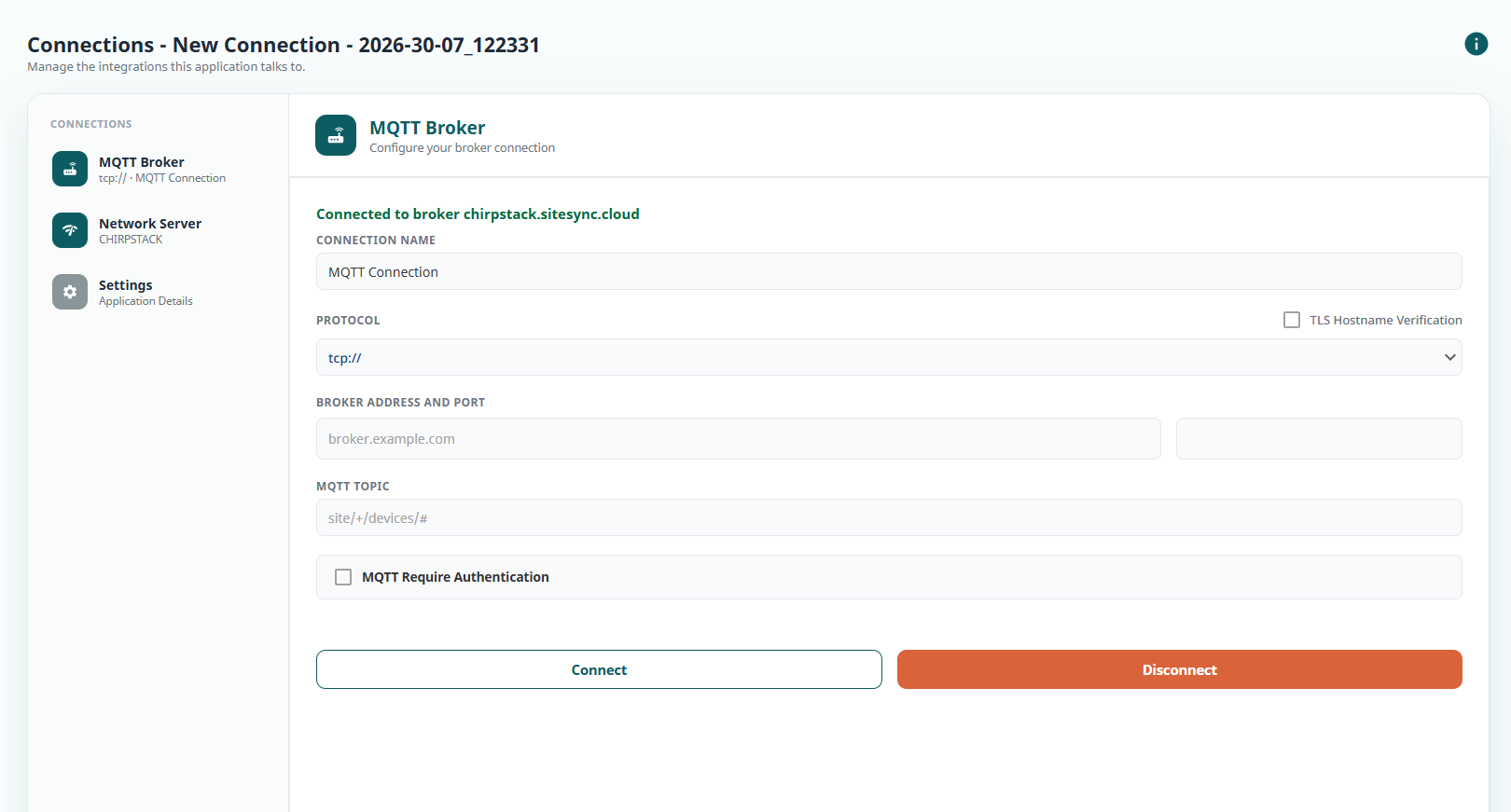
Worked example — ChirpStack
Section titled “Worked example — ChirpStack”A single-connection ChirpStack setup might look like this:
MQTT connection
| Field | Value |
|---|---|
| Broker URL or IP address | chirpstack.example.com |
| Port | 1883 |
| MQTT topic | application/1/device/+/event/up |
| Username / Password | sitesync / your broker password |
Join Server (API) connection
| Field | Value |
|---|---|
| URL | https://chirpstack.example.com:8090 |
| Application ID | 1 |
| Device Profile ID | f2c1a0b4-... (from ChirpStack) |
| API Token | generated in ChirpStack under API Keys |
Ingesting from two ChirpStack applications on the same broker? Use one connection with both topics, separated by a semicolon:
application/1/device/+/event/up;application/2/device/+/event/upSee ChirpStack for where each value comes from, and Configure MQTT for multi-topic details.
Expected result
Section titled “Expected result”The connection is saved and its status begins reporting on the Connections list. See Connection health.
Verify
Section titled “Verify”- Confirm Save and test reports success (see Test a connection).
- Confirm the connection shows Active on the Connections list.