
Set up backups
Open Database Backups (8.1: Config › SiteSync; 8.3: Platform › SiteSync). The page has four parts: Status, Gateway Backup Snapshot, Folder or Network Share, and Backups.
The page looks slightly different depending on your Ignition version — the settings are the same, only the Gateway menu and the snapshot path differ:
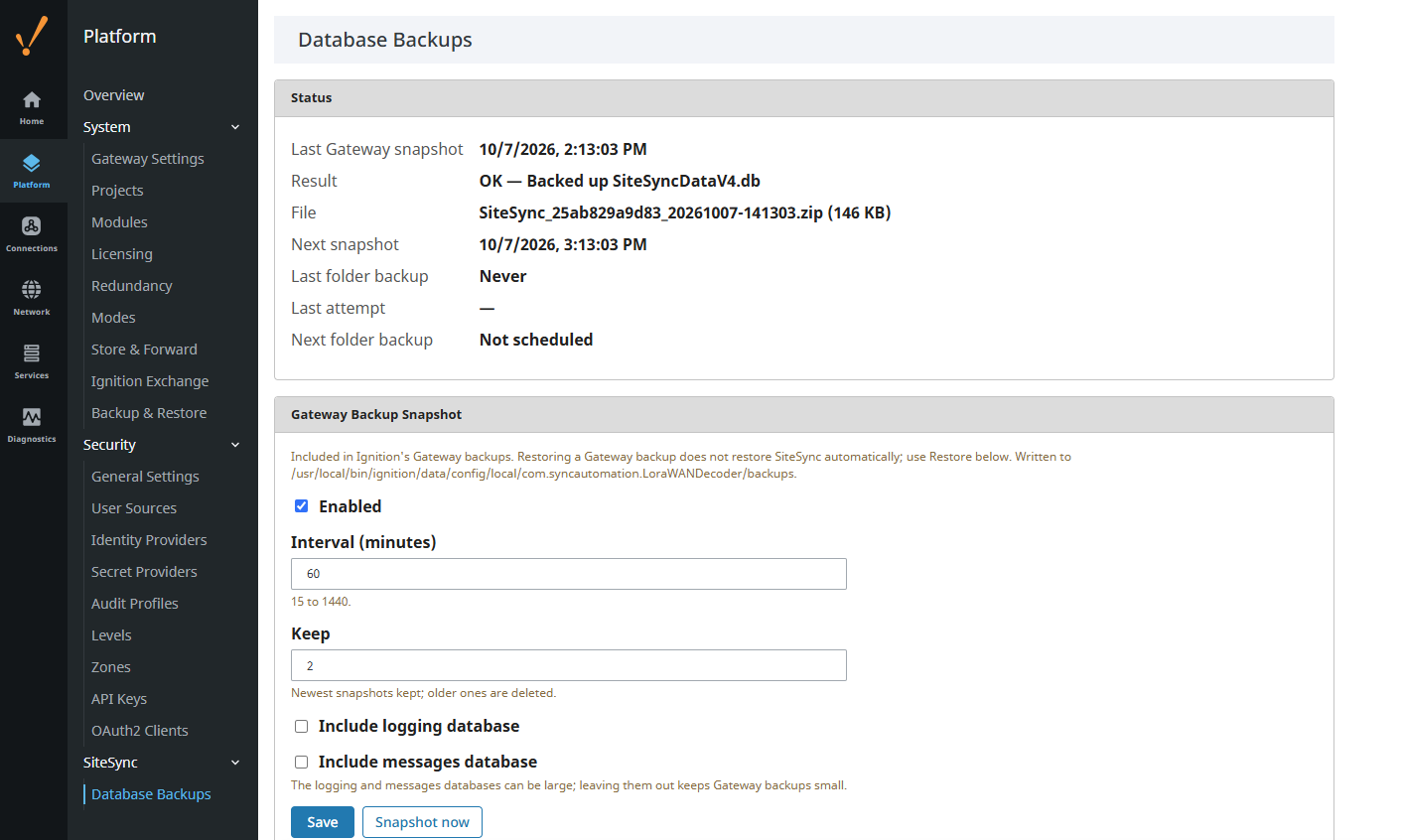
data/config/local/com.syncautomation.LoraWANDecoder/backups.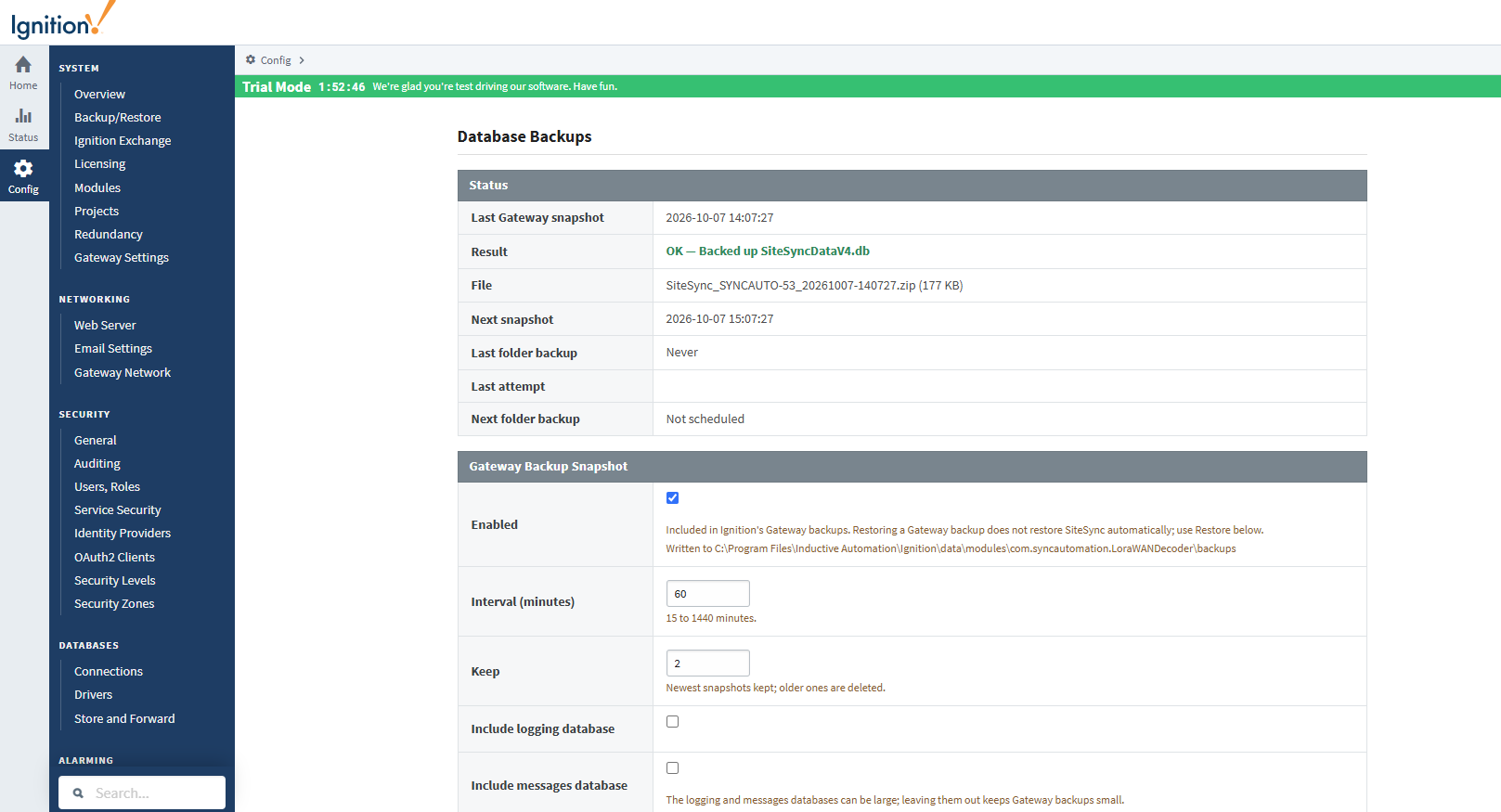
data/modules/com.syncautomation.LoraWANDecoder/backups.Check the status
Section titled “Check the status”Status shows when the last Gateway snapshot and the last folder backup were taken, whether they worked, and when the next ones are due.
If the page says the Gateway is the redundant backup node, backups and snapshots run on the master instead. See Redundant Gateways.
Gateway backup snapshot
Section titled “Gateway backup snapshot”Snapshots are on by default: every 60 minutes, newest 2 kept, main database only. To change them:
- Under Gateway Backup Snapshot, set:
- Enabled: turn snapshots on or off.
- Interval (minutes): 15 to 1440.
- Keep: how many snapshots to keep, 1 to 24. Older ones are deleted.
- Include logging database and Include messages database: off by default. They can be large, and leaving them out keeps Gateway backups small.
- Click Save.
To take one straight away, click Snapshot now.
Snapshots are stored where Ignition’s Gateway backups pick them up:
| Ignition version | Snapshot folder |
|---|---|
| 8.1 | data/modules/com.syncautomation.LoraWANDecoder/backups/ |
| 8.3 | data/config/local/com.syncautomation.LoraWANDecoder/backups/ |
Folder or network share
Section titled “Folder or network share”- Under Folder or Network Share, enter a Destination: a full path such as
\\fileserver\ignition\sitesyncorD:\Backups\SiteSync. - Click Test destination. SiteSync creates the folder if it’s missing, checks it can write there, and shows the free space. It warns you if the folder is on the Gateway’s own disk.
- Choose a Schedule:
- Daily at a set time: enter the time as 24-hour
HH:mm, in the Gateway’s local time. - Every N hours: 1 to 168.
- Daily at a set time: enter the time as 24-hour
- Set Keep: how many backups from this Gateway to keep, 1 to 365. Older ones are deleted. Backups from other Gateways and any other files in the folder are never touched, so several Gateways can share one folder.
- Choose whether to include the logging and messages databases.
- Tick Enabled and click Save.
To take one straight away, click Back up now.
If the Gateway was off when a daily backup was due, SiteSync takes it as soon as it’s running again.
Follow a backup’s progress
Section titled “Follow a backup’s progress”Snapshot now and Back up now start the backup in the background, so you can keep using the page. The Backups table shows every backup with its status:
| Status | Meaning |
|---|---|
| In progress | Being written now. A progress bar shows how far it has got and what it’s doing (copying a database, then writing the file). |
| Complete | Finished. You can download or restore it. |
| Failed | The last attempt didn’t work. The error is shown, for example a folder the Gateway can’t write to. It stays until a later backup to the same place succeeds. |
The table refreshes by itself, every few seconds while a backup is running, so scheduled backups appear too. Only one backup runs at a time. If you start another while one is running, you’re told to wait.
A backup is written to a temporary file and only appears in the table once it’s complete, so a half-written backup can never be downloaded or restored.
Download a backup
Section titled “Download a backup”Click Download beside any complete backup. You need Gateway write access, because a backup contains stored credentials.